Meet Craft mode: stitch along, row by row
What's new in Beadloo
Meet Craft mode: Beadloo now follows your pattern with you while you bead. Open a pattern, switch to the Craft tab, and Beadloo shows you the row you're on, the beads it needs in the order you string them, and every row you've already finished. Your place is saved as you go, on every device, and your pattern is never changed.
- One row at a time
- Word chart under every row
- Finished beads ticked off
- Keyboard and foot pedal
- Saved on every device
- Phone, tablet and desktop
In this update
What's new at a glance
- Follow your pattern row by row
The row you're on is outlined, and one tap takes you to the next. - The word chart, right under the row
Every color run of the row, in the order you string it. - Keyboard and foot pedal
Step through the rows without letting go of your needle. - Craft your way
Zoom, dimming, highlight color, full screen and a screen that stays awake. - On your phone
The whole row across the screen, and the controls under your thumb. - Your place, saved everywhere
Pick up on your tablet where you left off on your laptop. - When a pattern changes
Resized or repainted after you started? Craft mode asks what to do. - Progress on your dashboard
See how far each pattern has got, and jump straight back in.
Craft mode is part of Pro
Craft mode comes with Beadloo Pro, and with the free Pro trial. On a Free account the Craft tab shows what it does and how to upgrade.
Getting started
Follow your pattern row by row
- Open a pattern
Any square, peyote or brick stitch pattern with beads in it. - Select the Craft tab
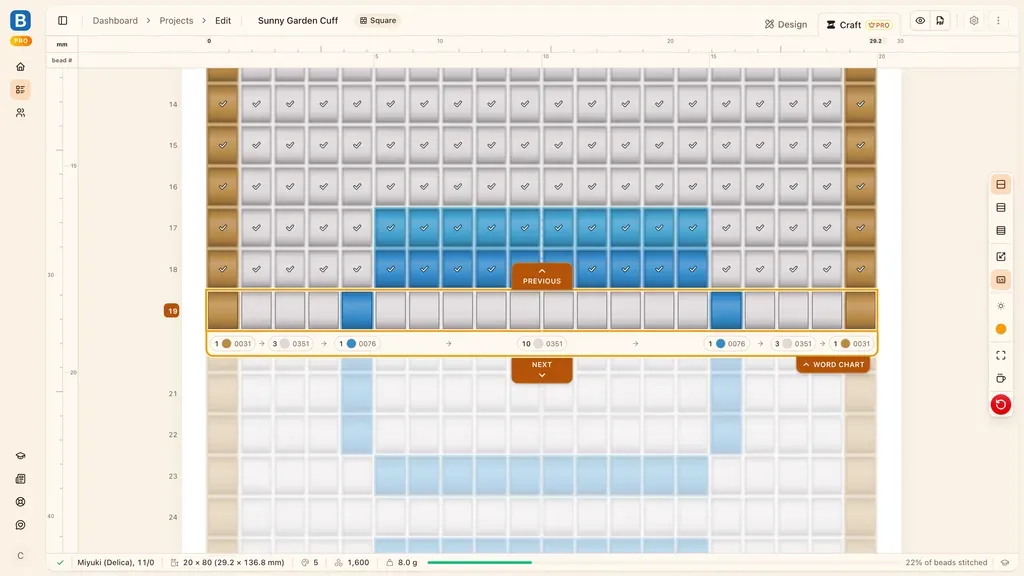
It sits next to Design, at the top of the editor. The pattern locks, so nothing can change it by accident. - Stitch the outlined row
Its beads are listed underneath it, in the order you string them. - Select Next
The row is ticked off and the view moves on to the next one. Made a mistake? Select Previous.

The row you're on, with Previous above it and Next below it. The number on the left is the row's number in your PDF word chart.
A row in Craft mode is exactly a row of your PDF word chart, for every stitch. Peyote starts with rows 1 and 2 together, as the chart does, and brick rows read left or right the way they are worked. Empty rows are skipped, so you never stop on a row with nothing to stitch.
Word chart
The word chart, right under the row
Under the row you're on, Craft mode lists each run of one color as a small badge: how many beads, the bead color and its number. The badges read in stitching order, with arrows that point the way the row is worked.

Row 19 reads 1 × 0031, 3 × 0351, 1 × 0076, 10 × 0351, 1 × 0076, 3 × 0351 and 1 × 0031.
Stitching a long row? Select a badge to mark your place in it. Craft mode remembers it until you finish the row.
Need more room? Fold the word chart away with its tab, and bring it back the same way.
Hands free
Keyboard and foot pedal
Your hands are busy with beads and thread, so Craft mode also listens to the keyboard. A Bluetooth page-turner pedal, the kind musicians use, works too: most send Page Down and Page Up.
| Key | What it does |
|---|---|
| Space, Enter, Page Down or → | Mark the row done and move to the next one |
| Backspace, Page Up or ← | Go back a row |
| ↑ and ↓ | Move to the row above or below, without marking anything |
Tip
Holding a key down never runs away with your rows: each press moves one row.
Settings
Craft your way
The tool bar on the right of the editor holds everything Craft mode lets you set, and Beadloo remembers your choices on that device:
- Zoom
Closest, middle or widest: how many rows you see around the one you're on. - Enlarge the active row
Draws the row you're on a little bigger than the rest. - Word chart under the row
Show or hide the badges. - Dim upcoming rows
Light, medium or strong, so the rows ahead don't distract you. - Highlight color
Amber, cyan or magenta, whichever stands out best against your beads. - Focus view
Full screen, with nothing but your pattern. - Keep screen awake
Stops your screen from going dark while you bead. - Reset progress
The red button. It asks first, and never touches the pattern itself.

The Craft tool bar.
Phones
On your phone
On a phone, Craft mode fits the whole row across the screen and puts the row number, the progress and the word chart at the bottom, right above the buttons. Move and zoom the pattern with your fingers, and select the fit button to bring the row back into view.
Tap a badge to see its bead number, and tap the Next and Previous arrows beside the row to step through it.
Row 19 of 80 on a phone.
Progress
Your place, saved everywhere
Craft mode saves your place to your account after every step. Open the same pattern on another device and you pick up exactly where you left off.
Beading somewhere without a connection? Your progress is kept on the device, and a small note tells you it hasn't reached your account yet. It's sent as soon as you're back online.
When a pattern changes
You can go back to Design at any time. If you change a pattern after you've started stitching it, Craft mode notices the next time you open it:
- Resized or cropped: Craft mode tells you which row you were on, and lets you keep the nearest row or Start over.
- Rows you already stitched were repainted: Craft mode shows which ones, and lets you choose to Continue with them marked as stitched, Stitch again from the first changed row, or Start over.
If you stitch on two devices, the newest place always wins, and Craft mode tells you when it has moved your place.
Dashboard
Progress on your dashboard
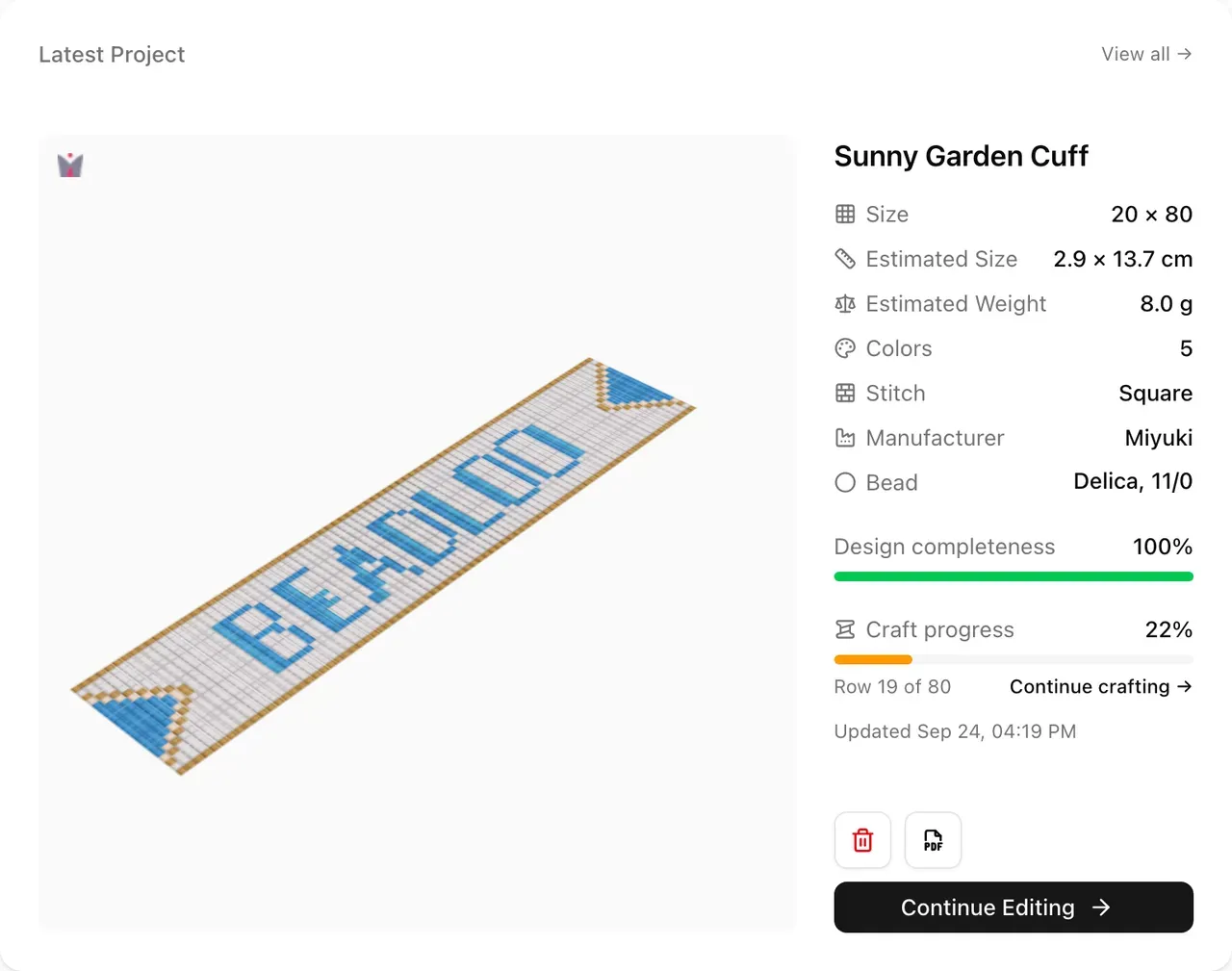
Your latest project now shows its Craft progress: how much is stitched, the row you're on, and a Continue crafting link that opens the pattern right where you stopped. On the Projects page, a thin bar along the foot of each card shows the same thing at a glance.
The old Progress figure is now called Design completeness, because that's what it measures: how much of the grid has beads in it.
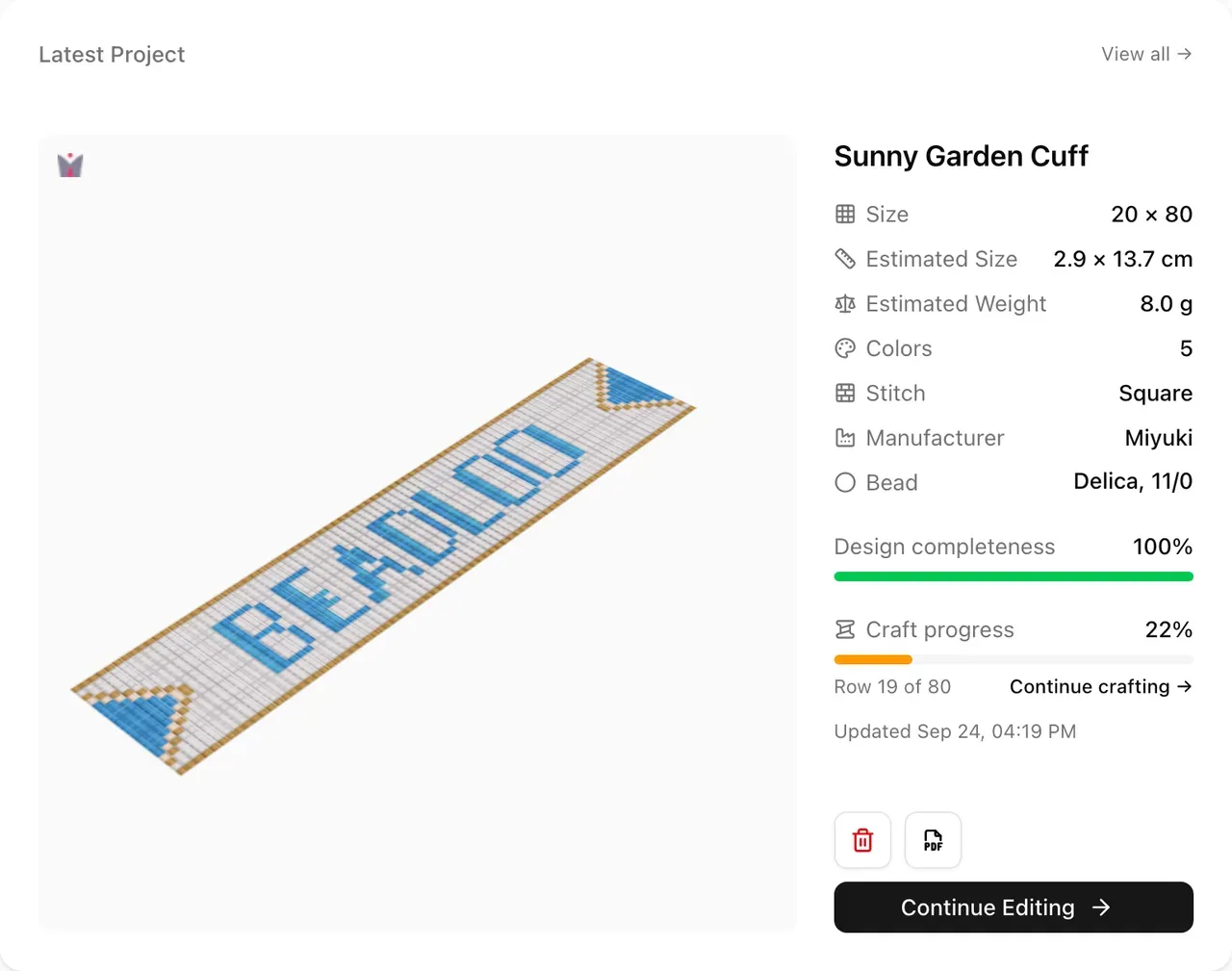
The dashboard's latest project.
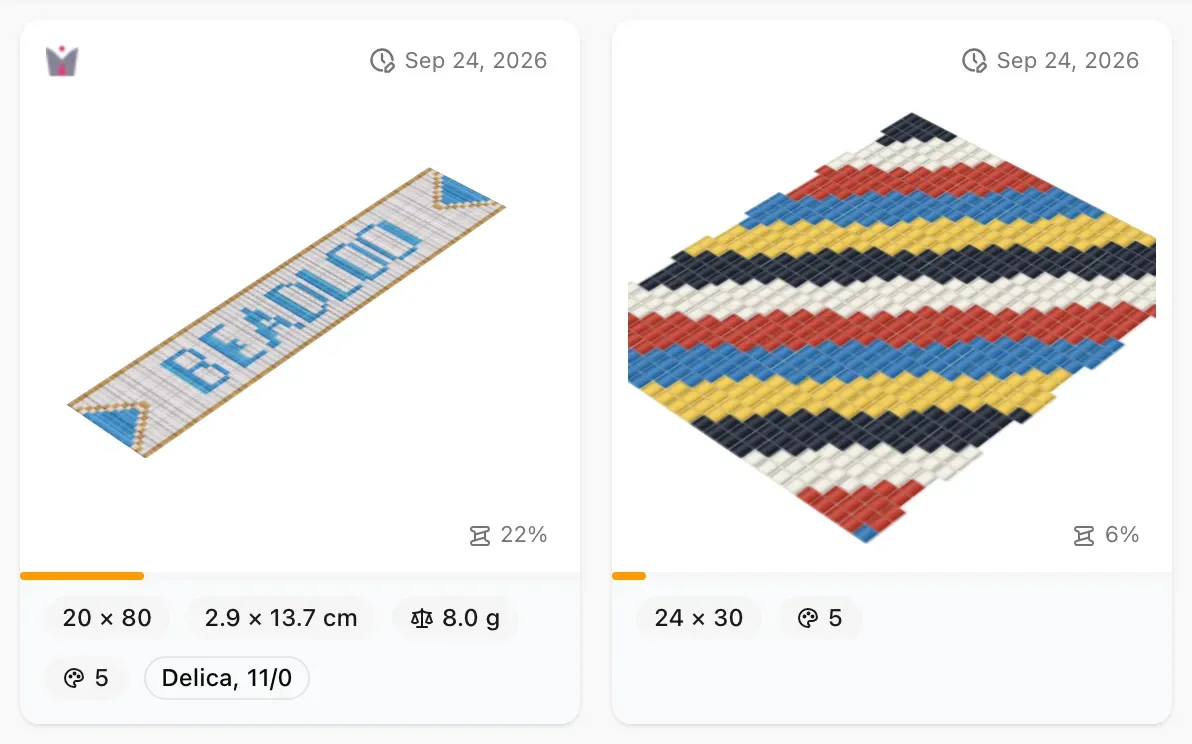
Project cards on the Projects page.
Your pattern stays exactly as it is
Craft mode never changes your pattern. Your beads, colors, PDF, bead counts and undo history are the same whether or not you've started stitching.
Also in this update
Word chart fixes
While building Craft mode we checked every PDF word chart against the rows as they're actually stitched, and fixed three things:
- Peyote from a bottom corner: the rows now come in the order you actually stitch them.
- Brick from a bottom corner: the (L) and (R) directions now always match how each row is drawn.
- Peyote: two runs of the same color side by side are now always joined into one.
If you've printed one of these patterns before, export it again for the corrected chart.
Smaller improvements
- When the sidebar is folded, Pro members now see a PRO badge under the Beadloo logo.
- On phones, zoom the pattern with two fingers. The fit and 1:1 buttons are still there.
Try it now
Open any pattern and select the Craft tab. We'd love to hear how it works for you at the loom.
Comments
Sign in to join the conversation.
No comments yet. Start the conversation.